Kindle Tips and Tricks: 10 Features Every Reader Should Know
This post may contain affiliate links. As an Amazon Associate and Bookshop.org affiliate, I earn from qualifying purchases at no extra cost to you.
Table of Content
A friend once told me that if you really master your Kindle, it might just start reading the books for you.I mean that’s pretty smart but well I cannot guarantee that, I do know one thing: there are some hidden Kindle tips and tricks that can make your reading experience so much easier and productive.
I have made a simple list for anyone who is new to the Kindle club to make sure that you have all the right settings to enjoy your next big read.
1. Customize Your Kindle Reading Experience
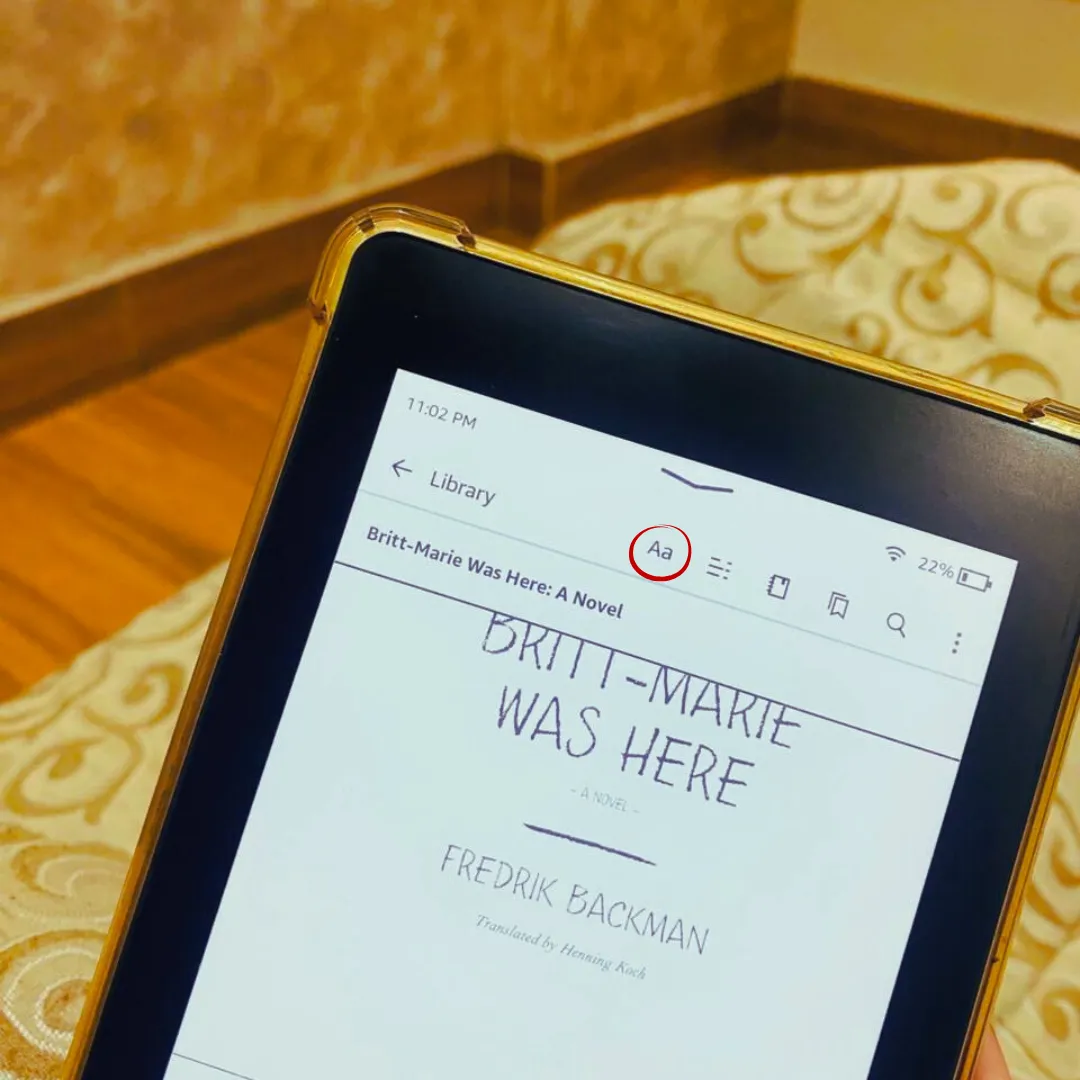
Your Kindle isn’t just an e-reader; it’s basically a personal reading assistant. And the best part? You can customize almost everything.
Here’s what to do:
- While reading a book, tap the top corner of the screen.
- It should show Aa option.
- Play with fonts, size, line spacing, margins, and alignment until it feels perfect for you.
Other tweaks I love:
- Switch between fonts depending on your mood
- Adjust brightness or mode (even warmth in newer models)
- Tap the screen corners for quick options without leaving your page
Trust me, once you set it up, reading on your Kindle suddenly feels way more comfortable than squinting at a tiny font on a phone or laptop.
If you’re considering your first Kindle, I shared my experience in my Kindle Paperwhite review after using it for one year.
2. Use Dark Mode for Comfortable Night Reading
If you read before bed as much as I do, Dark Mode might become your favorite Kindle feature.
My Kindle doesn’t have a warm light setting, so Dark Mode is usually my go-to option for nighttime reading. Instead of staring at a bright white screen in a dark room, the display switches to a darker background with lighter text, which feels much easier on my eyes.
To enable it:
- Tap the top of the screen while reading
- Open the settings menu
- Turn on Dark Mode
It’s a small change, but it makes late-night reading sessions much more comfortable.
3. Keep Your Highlights Organized with Your Clippings Folder
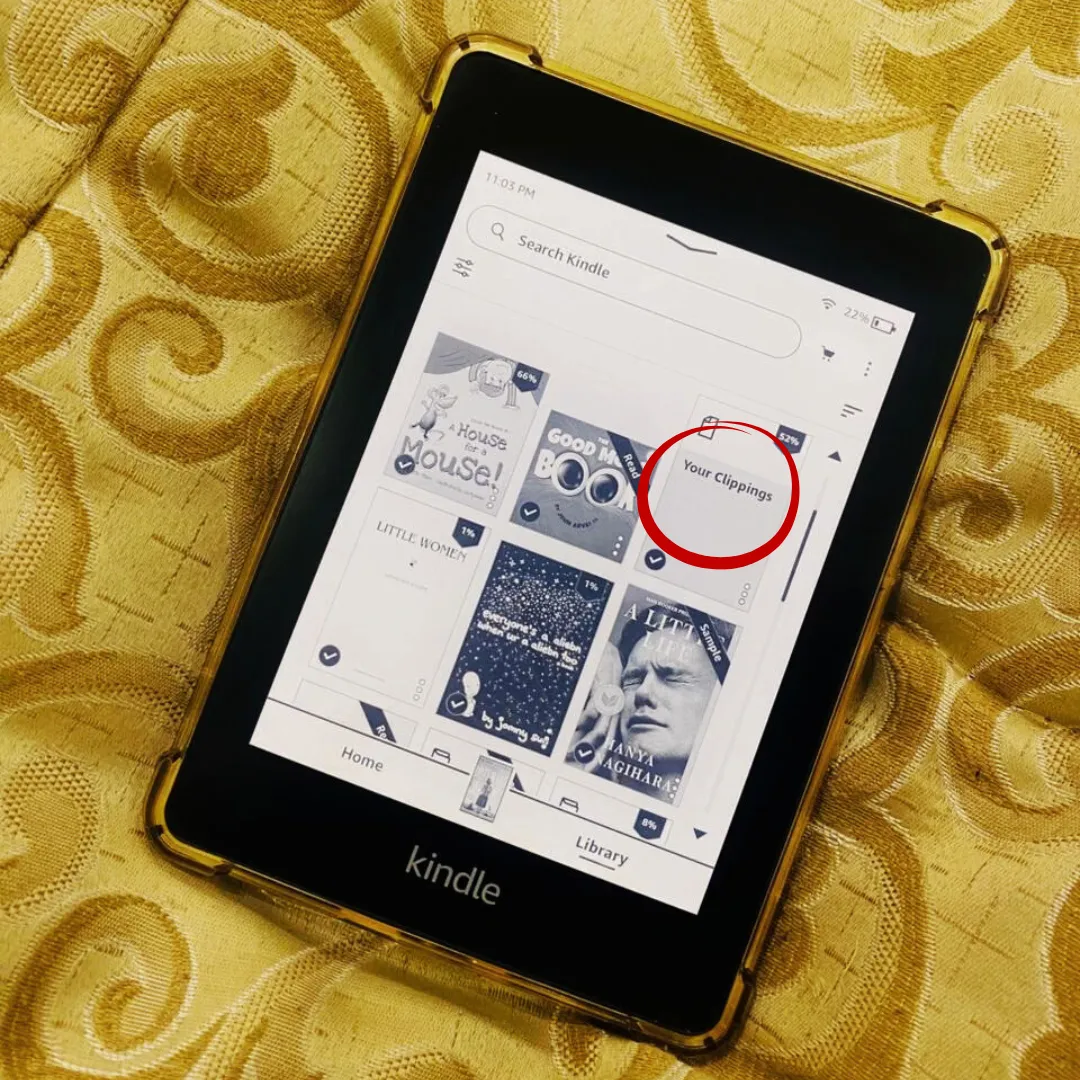
Raise your hand if you’ve ever returned to a Kindle Unlimited book and panicked about losing all your favorite quotes. Guilty!
The trick: Your Clippings folder. Every highlight, note, and annotation is automatically saved here, complete with page numbers and timestamps.
How to use it effectively:
- Highlight quotes as you read
- Check your Your Clippings folder anytime via your Kindle’s Documents or by connecting it to your computer
- Even if you return a book, all your notes are safe
This is basically your personal database of insights. It’s super handy if you’re a blogger, student, or just love saving memorable lines.
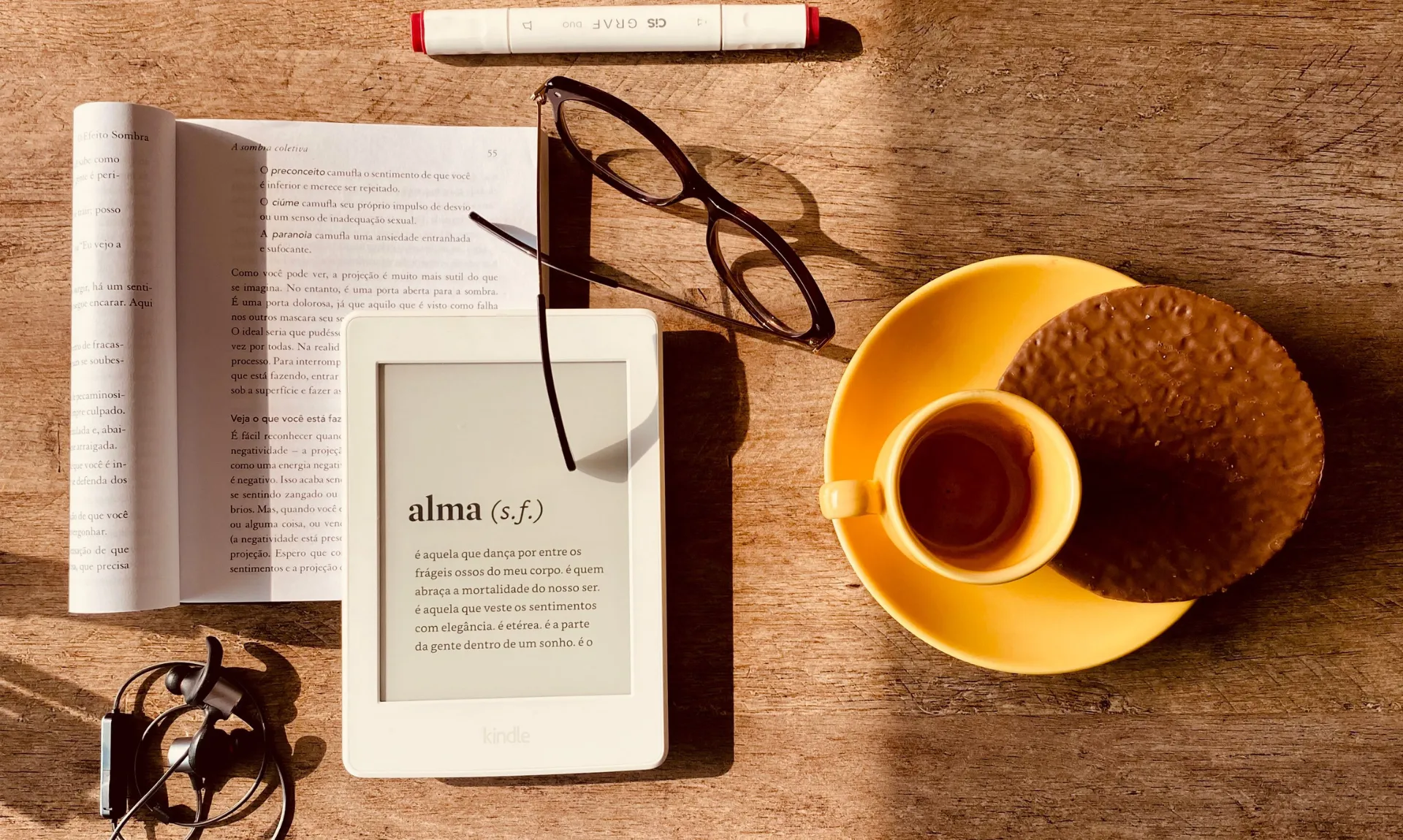
4. Build Your Vocabulary with Kindle’s Dictionary
One feature I underestimated when I first got my Kindle was the built-in dictionary.
Whenever I come across a word I don’t recognize, I simply press and hold it. Kindle instantly shows the definition without forcing me to leave the page or grab my phone.
It’s one of those features you don’t think about much until you’ve used it for a while and realize you’ve quietly learned dozens of new words.
If you read classics, literary fiction, or nonfiction, this feature becomes incredibly useful.
5. X-Ray: Dive Deeper Into Your Books
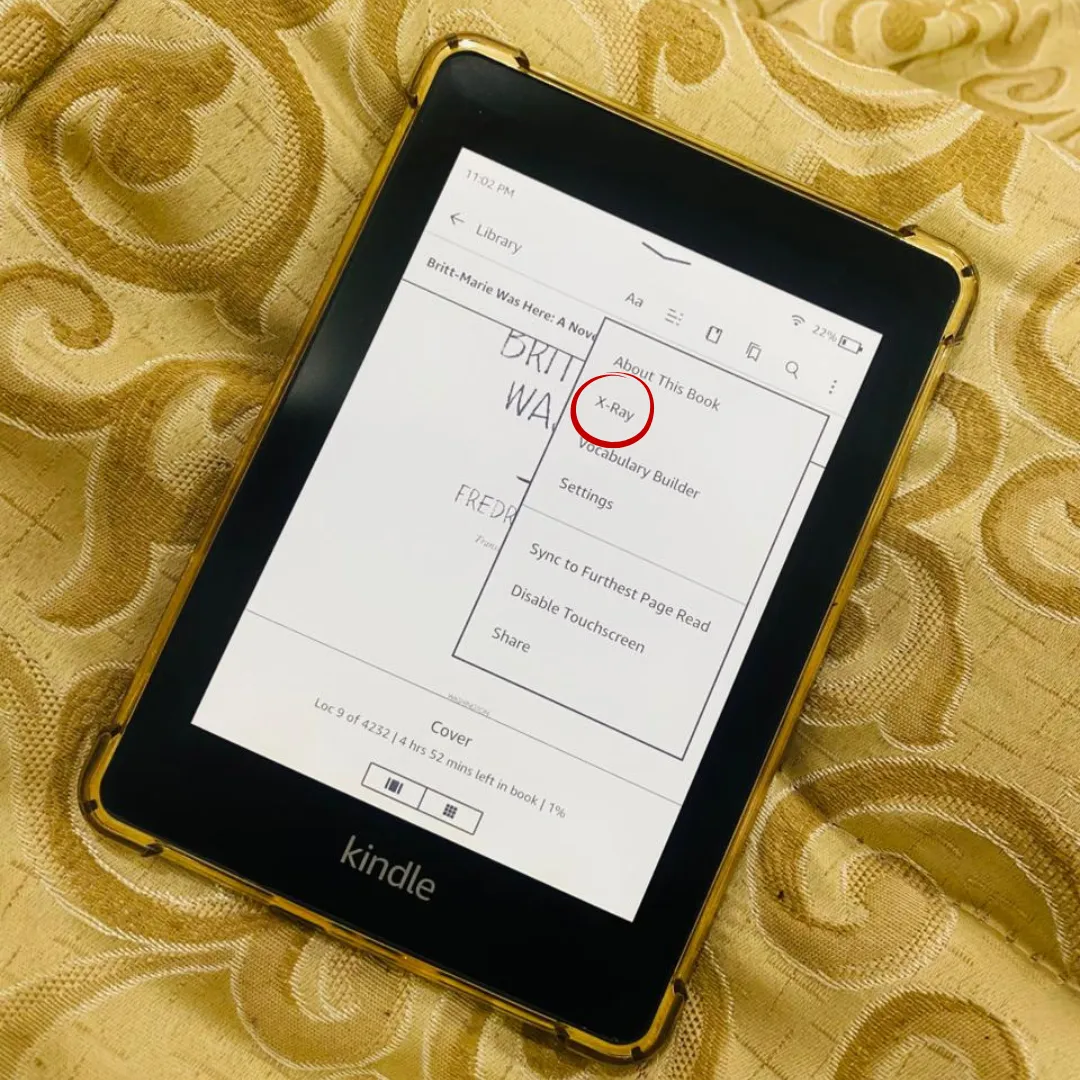
Here’s a Kindle trick that blew my mind: X-Ray.
When you’re reading a book:
- Tap the top of the screen.
- Select the three-dot menu.
- Tap X-Ray.
- Or, select any character name and its x-ray should pop up automatically.
What you get:
- Profiles of characters, people, and places
- Key events and timelines
- Deeper insights into themes and connections
Think of it like giving your book a tiny IQ boost, suddenly you understand the story better, without rereading chapters or flipping pages endlessly. I mostly use it for specific characters to know when or how they appeared in the story.
6. Organize Your Library with Collections
Once your Kindle library starts growing, finding specific books can get surprisingly frustrating.
That’s where Collections come in.
I use them to group books by genre and reading mood, which makes browsing my library much easier. Instead of scrolling through dozens of titles, I can jump directly to the type of book I’m in the mood for.
To create a collection:
- Open your Kindle library
- Tap the menu
- Select Create Collection
- Add your books
It takes a few minutes to set up, but it makes a huge difference once your library starts filling up.
7. Kindle Deals: Find Cheap Books Every Day
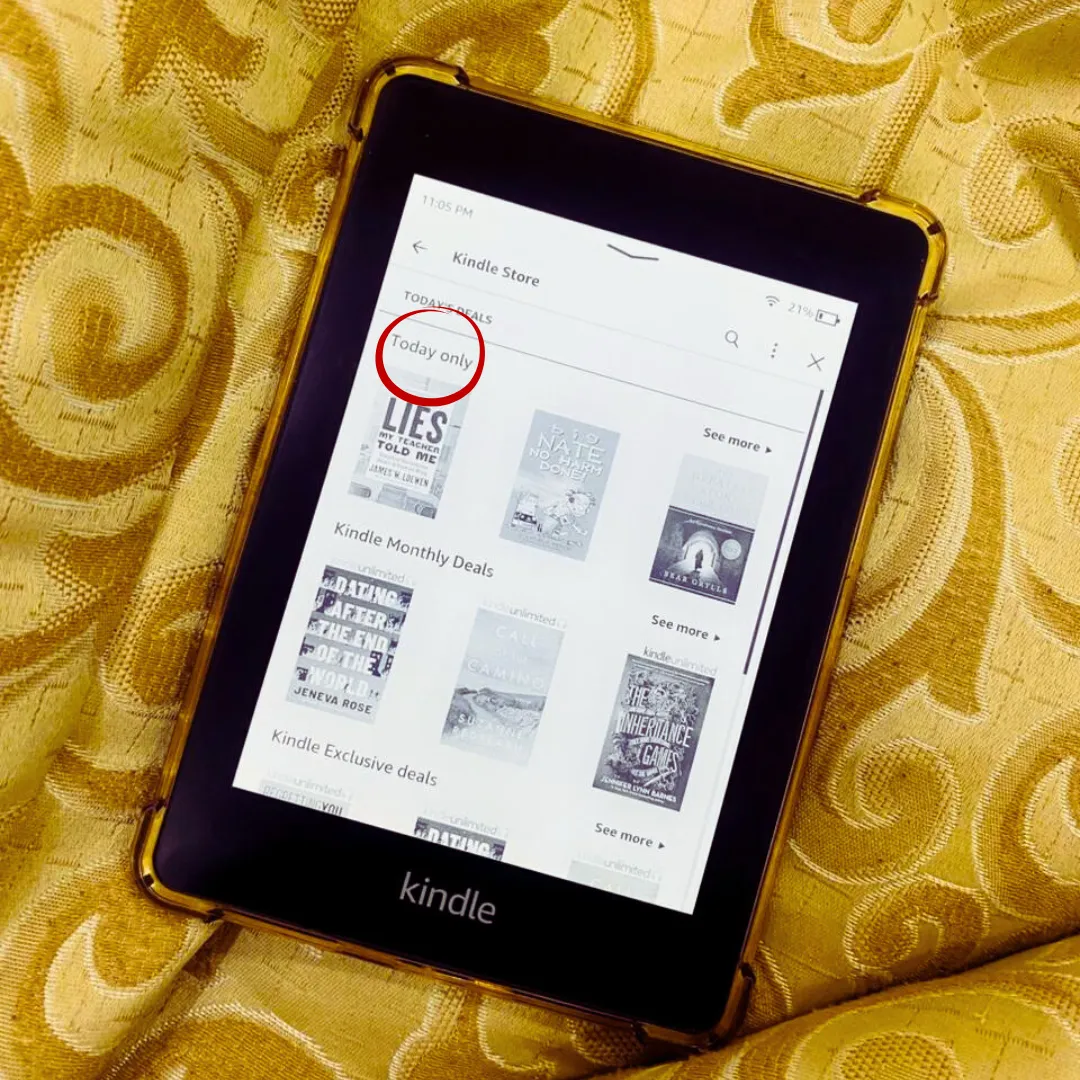
Here’s a pro tip: Kindle has a Deals section on the shop icon of your home screen. Click it and look for Today’s Deals, updated daily.
This Kindle trick is super effective as I got my favorite graphic novel, Everyone’s a Aliebn When Ur a Aliebn Too by Jomny Sun, for just $0.19. Yes, seriously, I mean it’s less than coffee.
Also, the deals section has monthly and exclusive deals as well.
How to make the most of it:
- Check the deals daily, they change fast
- Look for graphic novels, classics, or new releases you’ve been eyeing
- Add them to your library immediately if you see a steal
And I do mean to check it and act on it, I once missed Elena Ferrante’s The Days of Abandonment when it was on Kindle Deals for $1.99.
If you’re a Kindle Unlimited reader, I’ve also shared multiple KU lists you’ll love, my favorites are:
8. Send Articles and PDFs to Your Kindle
This might actually be one of my favorite Kindle features.
A lot of people think Kindles can only be used for ebooks purchased through Amazon, but that’s not true.
Amazon’s Send to Kindle feature lets you upload PDFs, documents, and other files directly to your device. I use it all the time when I want to read articles, guides, or documents without staring at a laptop screen.
The process is surprisingly simple:
- Make sure you are signed in to your Amazon account in the browser
- Search for “send to kindle” in your browser, or click here
- Navigate the page which is quite simple, and upload your file
- Wait a few moments
- Make sure the internet is connected to your Kindle device
Like magic, the document appears on your Kindle and is ready to read.
For anyone who reads long articles or works with PDFs regularly, this feature is a game-changer.
9. Always Check the Sample Before Buying
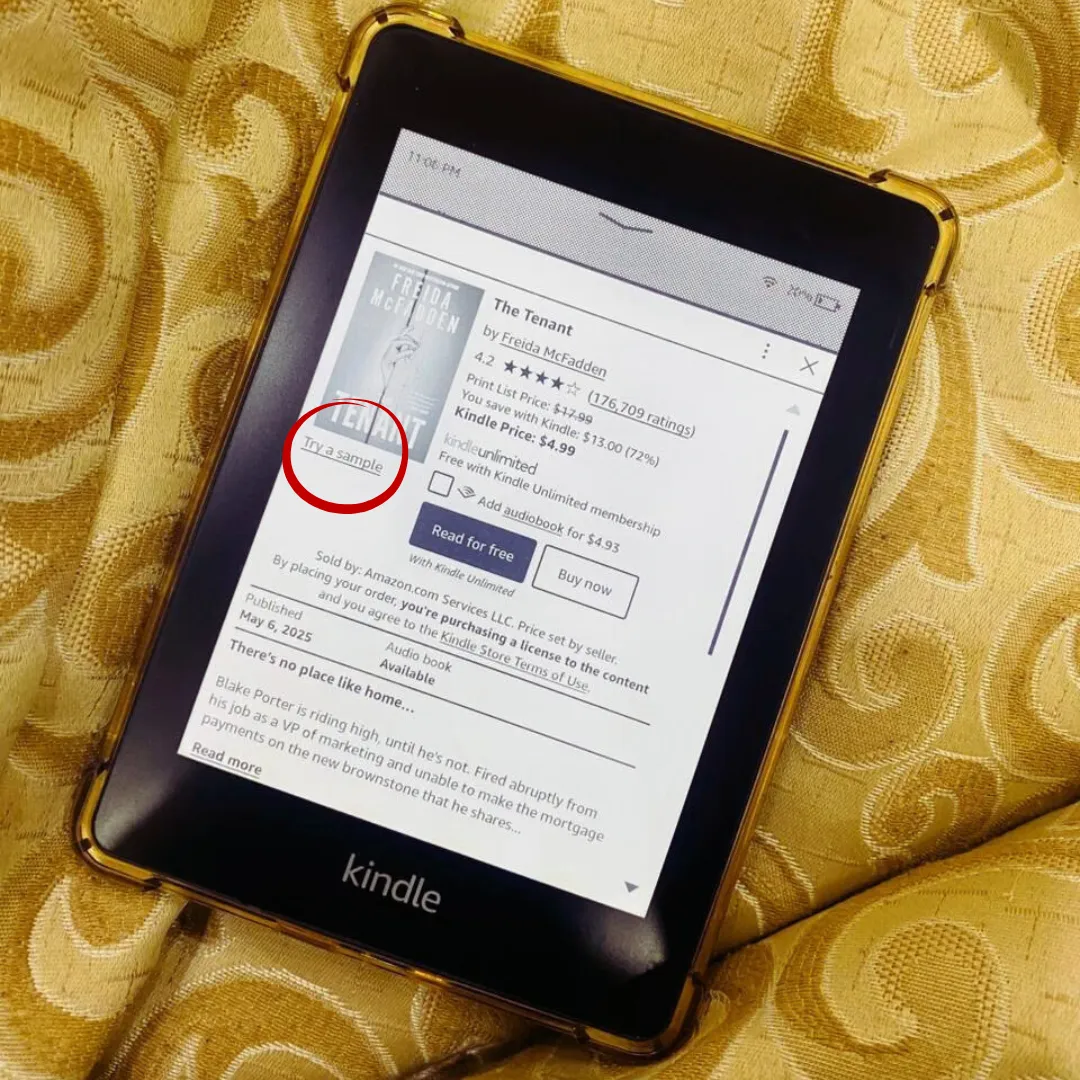
Ever bought a book, read 20 pages, and realized it wasn’t for you? Happens to all of us. Kindle lets you preview books for free.
Here’s what to do:
- Tap Try Sample on the book page
- Read a few pages before deciding
- Only buy the book if you actually enjoy it
I use this trick all the time, even when I plan to get the physical copy later. It saves money, time, and disappointment.
10. Use Goodreads Integration to Keep Track of Your Reading
One Kindle feature I don’t think gets enough attention is its Goodreads integration.
If you already use Goodreads to track books, create reading lists, or see what other readers are saying, connecting it to your Kindle makes everything much more convenient.
You can view book ratings, add titles to your Want to Read shelf, and keep track of your reading without constantly switching between devices.
I especially like using it when I’m unsure about a book. A quick glance at Goodreads reviews can help me decide whether it’s something I’d enjoy before committing to it.
To get started:
- Make sure your Goodreads account is connected (you can check it by tapping the three dots in the top-right corner)
- Browse Goodreads information directly from supported book pages
- Add books to your shelves without leaving your device
It’s a small feature, but it makes the Kindle feel much more connected to the wider reading community.
Wrap-Up: Make the Most of Your Kindle
From customizing fonts and organizing highlights to exploring books with X-Ray, discovering Kindle deals, using Dark Mode, and sending articles directly to your device, there’s so much hidden power packed into a Kindle.
The takeaway? Kindle is much more than an e-reader. It’s a tool that can help you read more comfortably, stay organized, discover new books, and even learn along the way. The more you explore its features, the more useful it becomes. I have a list of beginner-friendly books that are available on Kindle Unlimited if you are just starting your reading journey!
And that’s pretty much it! If you’re here because you love reading, there’s a lot more waiting for you on The Reader Life. Most of my blog focuses on book reviews, reading lists, and recommendations, and many of the books I talk about are available on Kindle Unlimited. So once you’ve got your Kindle set up and ready to go, you’ll have plenty of great reads to explore next.
Happy Reading!